Navigation
Application code should use helpers from ui/navigation.py
instead of manipulating page.views directly. Import route constants from
ui/route_paths.py.
Choose the helper from the navigation intent:
- Main Shell destination →
navigate_to()ornavigate_to_async(). - Focused Deep task →
push_view(). - Close the active Deep task, or in-place search when open →
go_back(). - Search the active tile source (in-place, not a route) →
go_search().
Ctrl+B (also Meta/Cmd+B) is installed in app.py via
install_keyboard_shortcuts. When a screen has registered a back handler
(edit-set uses the same path as its Back button, including the unsaved-changes
dialog), that handler runs; otherwise Ctrl+B calls go_back(page) — the same
path as closing search before popping a view on system back.
Ctrl+S on the edit-set screen saves (same as the Save button) while that
view is mounted.
See Two navigation roles if the Shell/Deep distinction is not yet clear.
Open a Shell screen
Use navigate_to(page, route, **params) from synchronous code:
from learning_app.ui.navigation import navigate_to
from learning_app.ui.route_paths import HOME_ROUTE

navigate_to(page, HOME_ROUTE)
navigate_to() replaces the current view stack with the requested Shell
destination. Use it when changing the application's main screen, rather than
when opening a temporary task above the current screen.
Use navigate_to_async() inside async handlers. The drawer uses this form
because its open and close operations are asynchronous.
Open and close a Deep screen
push_view() keeps the current view available beneath the focused screen:
from learning_app.ui.navigation import push_view
from learning_app.ui.route_paths import SET_EDIT_ROUTE

push_view(
    page,
    SET_EDIT_ROUTE,
    file="animals_words.csv",
    title="Animals",
)
Open the learn menu or an active learn session the same way:
from learning_app.ui.route_paths import (
    SET_LEARN_ROUTE,
    SET_LEARN_SESSION_ROUTE,
)

push_view(page, SET_LEARN_ROUTE, file="animals_words.csv")
push_view(page, SET_LEARN_SESSION_ROUTE, file="animals_words.csv")
SET_LEARN_ROUTE is the set menu; SET_LEARN_SESSION_ROUTE is the active
practice view. Both require file (the set basename). Home Set settings
and the settings button on that menu open SET_SETTINGS_ROUTE
(/set/settings) with the same file parameter.
push_view() is the normal entry point for a registered Deep route. If it
receives a Shell route, the router does not push that route onto the stack; it
falls back to the same stack-replacement behavior as navigate_to(). Call
navigate_to() directly for Shell navigation so the intent remains clear.
The parameters become a query string:
build_route() converts every non-None value to text and URL-encodes it.
The router decodes the query into dict[str, str], so factories receive route
parameters as strings even when the caller supplied another value type.
The build factory reads the parsed values:
def _build_edit_set_controls(
    page: ft.Page,
    params: dict[str, str],
) -> list[ft.Control] | None:
    file_name = params.get("file")
    title = params.get("title")
If required data is absent, a set CSV referenced by file no longer
exists on disk, or a create-set edit URL still carries title after that
CSV was already created, the factory can return None. The router then builds
the route configured in RouteDef.fallback_path (usually Home), pushes that
fallback URL so browser history stays consistent, and may show a short
SnackBar (This set no longer exists. or This set already exists.). This
prevents crashes from stale deep links after delete, blocks re-creating a
duplicate catalog entry from browser Back, and avoids showing an incomplete
Deep screen with missing input.
def _build_edit_set_controls(
    page: ft.Page,
    params: dict[str, str],
) -> list[ft.Control] | None:
    file_name = params.get("file")
    if not file_name:
        return None
    return [EditSetMenu(file_name)]


RouteDef(
    # ...
    build_factory=_build_edit_set_controls,
    fallback_path=HOME_ROUTE,
)
Close a Deep screen with go_back():
Android's system Back button must do the same thing: reveal the previous screen with its Shell chrome. Check that on an APK or emulator; browser Back is a different mechanism.
After the first Save of a set that was just created, call
reanchor_edit_on_home(page, file_name) instead of editing page.views.
That helper rebuilds Home and Edit so Back skips the create form and lands on
a fresh catalog.
Open search
go_search(page, mode="home") opens in-place search for the active tile
source. Supported modes are "home" and "export":
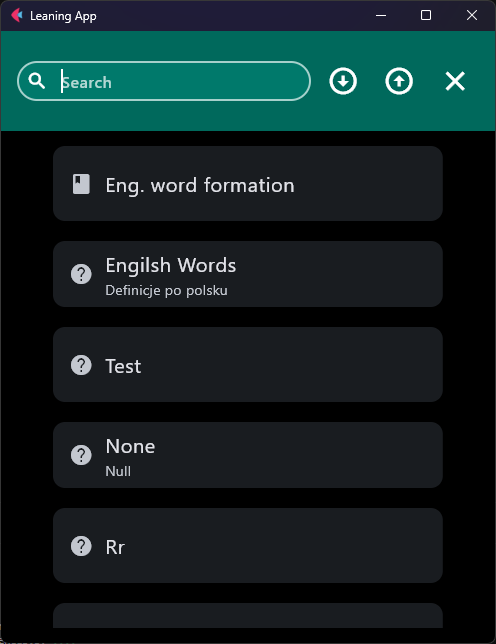
Search obtains that source through the
body registry, then hosts SearchControl as
the shared AppBar title without changing the route or reparenting tiles.
Important constraints:
- Call
go_search(..., mode="export")only after the Import/Export screen has registered the exportTilesContainer.BodyRegistry.get_export()asserts if that body was never created. - If the selected body has no content tiles,
go_search()returns without opening search. - On the Import/Export route, the bottom-bar search button is shown only on the
Export tab; the screen toggles visibility itself. Startup still routes
that button to
mode="export"whenever the current path is Import/Export. go_back()closes in-place search first when it is open; otherwise it pops the active route view. System back (handle_view_pop) does the same while search is active, so the shell route is not popped.
See the Navigation API and
Route URL API for complete signatures and
parameter encoding contracts. RouteDef and fallback_path are documented
in the Route registry API.